
Getting into a Tesla’s passenger seat seems straightforward, but it can be a bit tricky the first time. If you’ve ever found yourself fumbling to unlock the passenger door, you’re not alone. To unlock the passenger door, long press the button on the top of the interior driver door handle, or use the vehicle’s touchscreen. Let’s go through the ways to easily unlock those doors without any hassle. 🚗💡
Remember when we discovered the lock icon on the Tesla touchscreen? That icon is a lifesaver. Just tap the icon on the upper left of the GPS screen to unlock the passenger door from inside. It’s as simple as pushing a button. On some models, you might find this button function on the driver door handle itself.
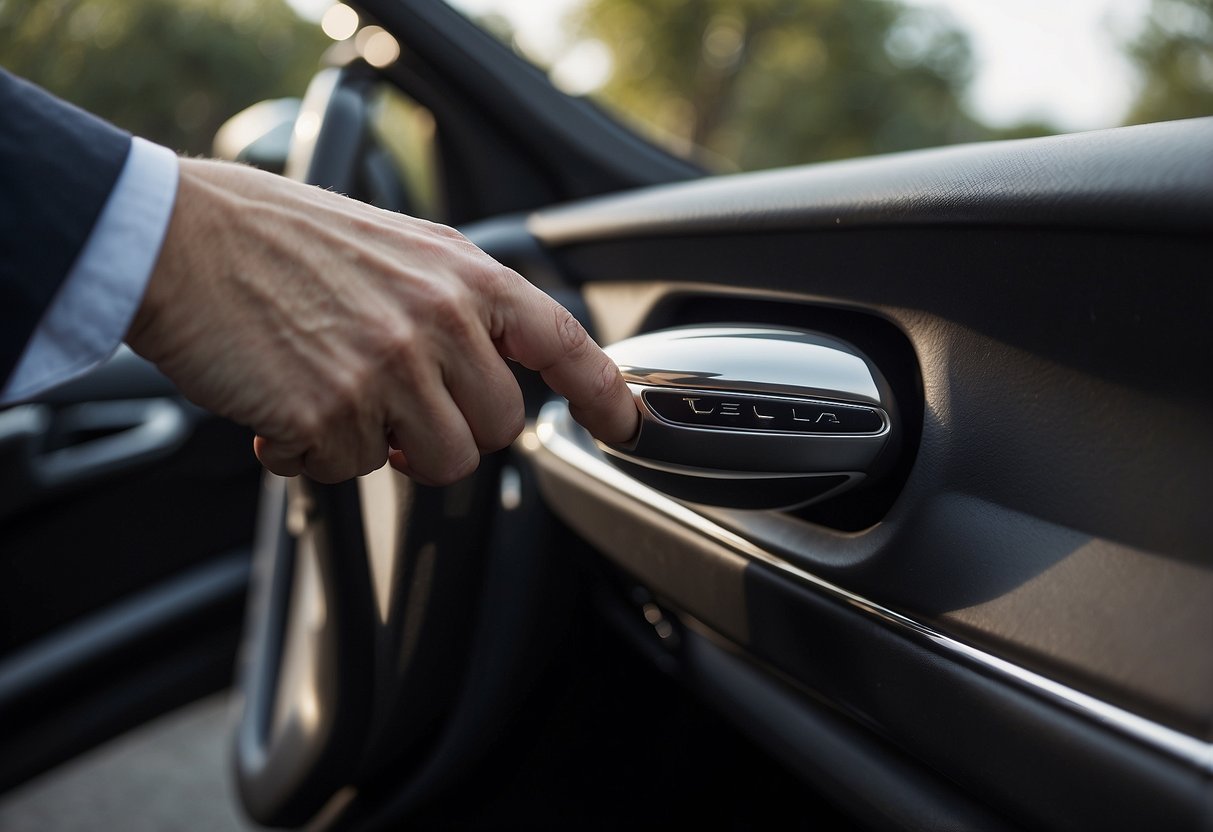
If you’re outside the car, each Tesla model has its little quirks. For the Model S, press down on the handle to make it extend, and then pull it open. For the Model 3 or Y, push down on the wide part of the door handle with your thumb before pulling. It’s like having a secret handshake with your car! 🛠️✨
JUMP TO TOPIC
Unlocking Your Tesla: A Guide to Access Features
Unlocking your Tesla can be done with various tools and methods. We’ll cover key fobs, key cards, and the Tesla mobile app. Each method offers its own set of features that make accessing your vehicle easier.
Understanding Door Locking Mechanisms
Tesla’s door locking system is smart and intuitive. When we have the key fob or mobile phone nearby, the driver’s door unlocks automatically.
To unlock other doors, we need to either long-press the button inside the driver’s door handle, use the touchscreen, or press the key fob again. Pretty slick, right? This ensures that all doors remain secure until we choose to open them.
This approach enhances security while offering convenience. It’s like having a personal doorman for our car 🚗!
Using Key Fobs and Key Cards
The key fob and key card are traditional yet high-tech ways to unlock our Tesla. We can carry these in our pockets for easy access.
Key Fob: It’s a mini replica of the car. Press it once to unlock the driver’s door and twice for all doors. We can also enable keyless driving with the key fob.
Key Card: If we’re fans of tapping, the key card is for us. Tap it against the B-pillar (the vertical frame between the front and back doors) to unlock all doors. Simple and secure 🏁!
In case the battery dies, the card is an excellent backup. Having both in our pocket ensures we’re never locked out.
Leveraging the Tesla App for Remote Access
The Tesla mobile app is a powerhouse of features. Once we download it, we have the smart key to our car right in our hands.
To unlock the door, open the app, and tap the unlock icon 🔓. This app connects via Bluetooth, so turn the Bluetooth setting on for a seamless experience.
Getting in and starting the car requires just a few taps. We can also use the app to control climate settings, check car status, and so much more. Imagine being able to preheat the car from our cozy bed on a cold morning 🌡️!
Customizing Security and Lock Settings
Adjusting the lock and security settings on a Tesla can enhance safety, adapt to personal preferences, and streamline daily use. These settings ensure the vehicle locks and unlocks in ways that best suit our needs.
Driver Door Unlock Mode and Safety Considerations
Enabling Driver Door Unlock Mode ensures that only the driver’s door unlocks when we first approach the vehicle. This provides an extra layer of security. For instance, if we are in a high-traffic area or a dimly lit parking lot, unlocking just the driver’s door minimizes potential risks.
To activate this mode, simply navigate to Controls > Locks > Driver Door Unlock Mode. This feature requires a key to be present on the driver’s side. Any attempt to unlock the remaining doors will require a long press on the button at the top of the interior driver door handle. This way, we can ensure that no unauthorized person can easily access the car.
Adjusting Settings for Individual Preferences
Customizing the lock settings to match our day-to-day use is crucial. One handy setting is the walk-away door lock. It automatically locks the vehicle when we walk away with the key. To turn this on, go to Controls > Locks > Walk-Away Door Lock.
We’ve also got the drive away locking, locking all doors at a certain speed. This keeps the car secure even if we forget to lock it. It adds an extra layer of security when we’re driving through less secure areas.
For those who prefer manual control, the lock icon on the top of the screen helps lock the doors whenever needed. This icon is always visible and even changes color to show the current lock status. Having this kind of control at our fingertips can make all the difference in ensuring our vehicle stays secure.
Utilizing the Exclude Home Checkbox
Sometimes, we might not want the car to lock when it’s parked at home. Tesla thought of that too! The Exclude Home Checkbox lets us keep our home address as a safe zone. When enabled, this feature stops the car from locking automatically when parked there.
To enable this, we go to Controls > Locks > Exclude Home. We must make sure our home address is set in the navigation system correctly. This ensures that when we’re moving around our home, the car stays unlocked and accessible.
This feature is a simple yet powerful tool. We don’t have to keep unlocking the car every time we need something from it while parked at home. It’s these thoughtful touches that make owning a Tesla so user-friendly.
Handling Emergency Scenarios and Manual Overrides
Knowing how to manually unlock a Tesla door can be crucial, especially during power outages or if you need to activate child locks. Let’s tackle each of these scenarios clearly and simply.
Accessing Doors During a Power Outage
In case of a power outage, Tesla’s electronic door handles might not work, which could certainly give anyone a scare. But don’t worry! 🚨 We can simply use the manual release handle located right above the window switches on the front doors.
Here’s a step-by-step guide:
Keep in mind, only the front doors have these manual releases. So, make sure everyone knows how to use them. Practicing this can prevent panic during actual emergencies.
Activating Child-Protection Lock Features
Now, let’s talk about keeping the little ones safe with child locks. 🛠️ When activated, these locks prevent children from opening the rear doors from the inside. We can enable these through the car’s touchscreen.
Here’s what we need to do:
2. Select “Safety & Security.”
3. Toggle on “Child Lock.”
Once this is done, the rear doors will only open from the outside. It’s a simple step that greatly enhances safety for families.
Understanding Alerts and Indicator Lights
Keeping an eye on alerts and indicators can save us time and trouble 🚗. For example, if a door isn’t closed properly, a door open indicator light will show up on the screen. This hint helps us avoid any mishaps while driving.
Additionally, we should stay vigilant for:
– **Warning icons** indicating that a door isn’t securely locked.
– **Alerts** about child-protection lock activation status.
By understanding these alerts, we can address issues promptly and ensure our drive remains smooth and safe.

We love what we do, and it shows in everything we do and more. We share our knowledge, here on Ran When Parked.
- Car Jerks When Accelerating Slowly – Causes and Fixes - January 8, 2026
- Check Engine Light On but Car Runs Fine – Causes Explained - January 4, 2026
- Car Shakes When Idling but Drives Fine – Causes & Fixes 2026 - January 4, 2026